

Game server logs
GameFabric lets you download game server logs as a compressed archive. Logs are retrieved from the platform's log aggregation service and delivered as a .log.gz file directly to your browser. Logs are available for both Vessels and Armadas, but with slightly different retrieval methods.
Vessel logs
Because a Vessel can be restarted over its lifetime, logs are scoped to a specific instance identified by a UID. The download dialog lets you select which instance to download from, including previous ones.
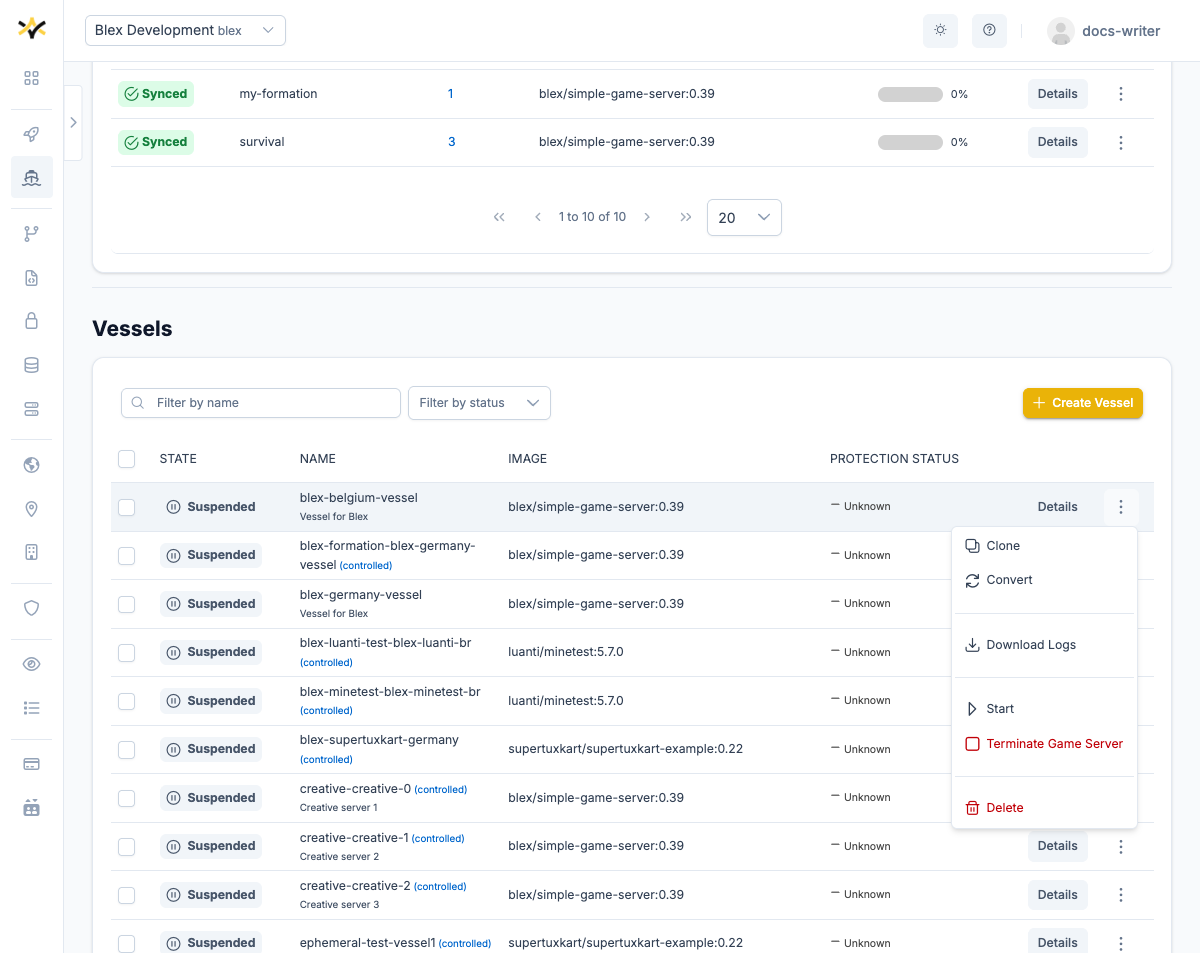
To open the log download dialog, navigate to Persistent Servers → Vessels, open the row menu (⋮) for the Vessel you are interested in, and select Download Logs.
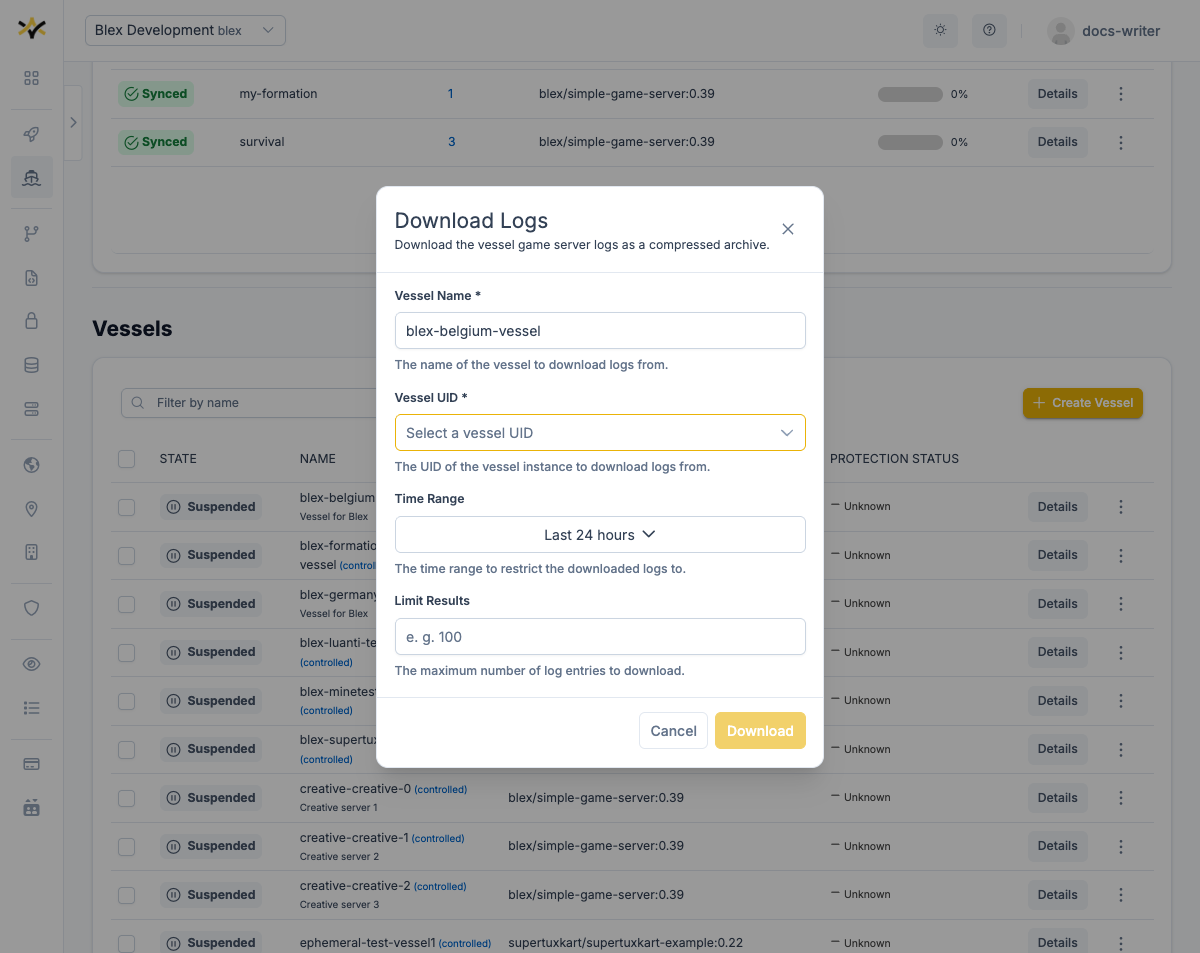
The dialog opens with the Vessel Name and UID pre-filled from the Vessel you selected. You can adjust the UID to target a previous instance, and optionally narrow the results by time range or entry count.
Permissions
To download Vessel logs, a user must belong to a group with a role that has at least GET permission for the vessels/log resource in the formation API group.
Access Control
For more information on managing permissions, see Editing Permissions.
Downloading logs from a previous instance
Each time a Vessel restarts it is assigned a new pod UID, and logs from the previous run are retained under the old pod UID.
To download logs from a previous Vessel instance:
- Open the Vessel UID dropdown in the dialog.
- Select the UID of the instance you want.
The available list of instance UIDs to pick from is populated automatically when the dialog opens. If the list cannot be loaded, the dropdown falls back to the current instance's UID.
If no UIDs appear in the dropdown, the Vessel likely has no logs yet. If you know the UID you want, you can type it directly into the field.
Downloading
Click Download. Once the request completes, your browser saves the file as <vessel-name>.log.gz.
If there are no logs, an empty file is downloaded.
Armada logs
Navigate to Dynamic Fleets → Armadas, open the row menu (⋮) for the Armada you are interested in, and select Download Logs.
Armadas can run many game server pods simultaneously, so you must provide the name of the specific pod you want logs from. The UI does not list available pods, so you need to find the pod name yourself.
Permissions
To download Armada logs, a user must belong to a group with a role that has at least GET permission for the armadas/log resource in the armada API group.
Access Control
For more information on managing permissions, see Editing Permissions.
Finding a pod name
An Armada can run thousands of game server pods simultaneously, and the GameFabric UI does not list individual pod names. You need to obtain the pod name from outside the UI. Common sources include:
- Your game server process — configure your Armada or Vessel to inject the pod name into the container at runtime using
valueFrom.fieldRef. Your game server can then log or expose this value on startup so your operations team can retrieve it when needed. - Your matchmaker or allocation system — if your matchmaker records which pod handled a session, the pod name is in those records.
Injecting the pod name via fieldRef
Add the following to the env array of the container in your Armada or Vessel spec:
{
  "name": "POD_NAME",
  "valueFrom": {
    "fieldRef": {
      "fieldPath": "metadata.name"
    }
  }
}
At runtime, POD_NAME contains the full pod name (e.g. my-armada-site-abc123-xyz). The fieldRef mechanism also exposes other useful fields, including metadata.armadaName, metadata.regionName, metadata.siteName, metadata.imageName, and metadata.imageTag.