

Audit logs
Audit logs record every action taken in your GameFabric installation, including who made the change, which resource was affected, and whether the operation succeeded. Use audit logs to investigate incidents, satisfy compliance requirements, or track configuration drift.
Data availability
Audit logs may be delayed by a couple of minutes due to collection and processing pipelines.
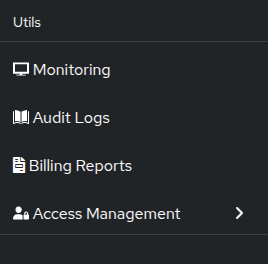
To access audit logs, click Audit Logs in the sidebar.
Permissions
To access audit logs, a user must belong to a group with a role that has the GET permission for the logs resource. See the Editing Permissions guide for more information.
Filtering and searching
The audit log view provides several ways to narrow results. Use the toolbar to:
- Search by Entity ID or Editor.
- Filter by Operation (
create,delete,update,partial update), Environment, or Entity type. - Select a time range with the time range picker.
- Toggle Include automated to show or hide events from automated system actors.
- Change the sort direction to view oldest or newest events first.
Click any event row to expand it and view the full request and response payload.
Exporting audit logs
GameFabric can continuously push audit logs to an external S3-compatible storage location. This enables long-term retention and integration with external compliance or analytics tools.
For setup and configuration instructions, see Audit log exports.