

GameFabric Cloud
GameFabric Cloud enables self-service provisioning and deprovisioning of cloud capacity at specific Locations directly from GameFabric, without requiring operator involvement. All costs are transparently displayed and delivered through the GameFabric billing system.
Provision a Cloud Location
Cloud capacity is requested per Location. Each request specifies a machine type and a node count (the scaling limit).
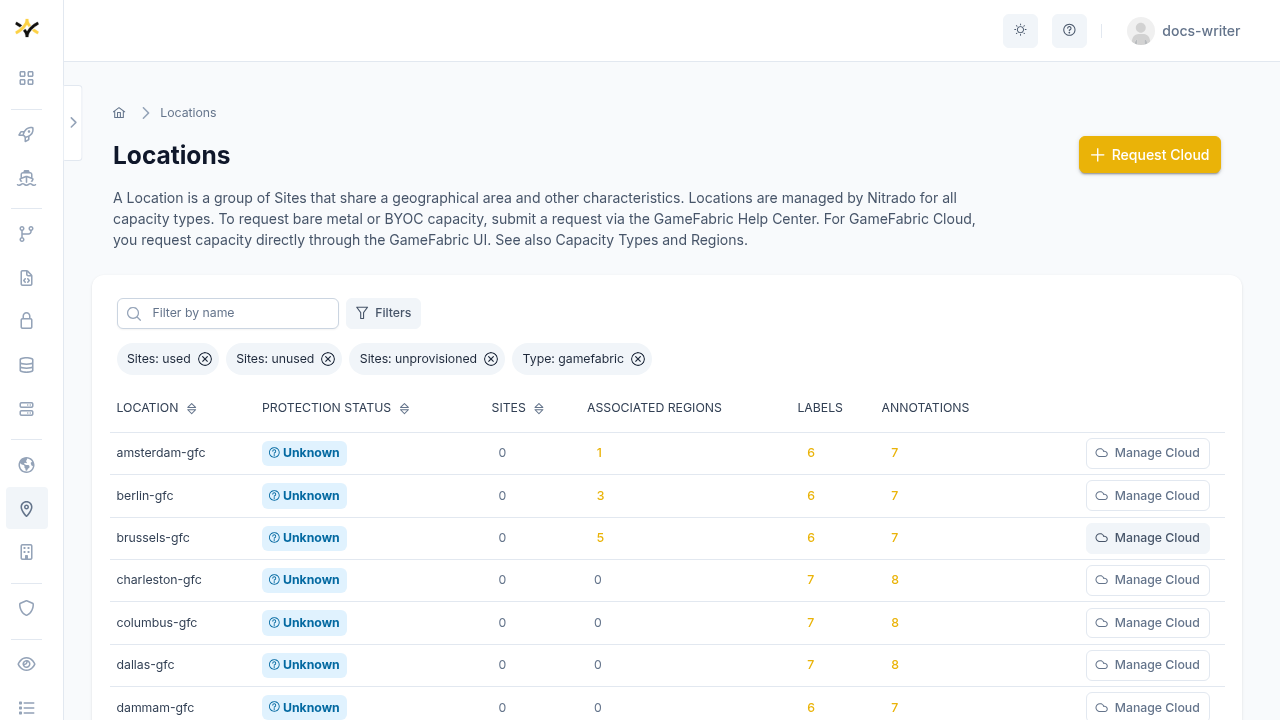
Navigate to Capacity » Locations and either:
- Click Request Cloud in the page header, or
- Find a GameFabric Cloud Location and click Manage Cloud in its row.
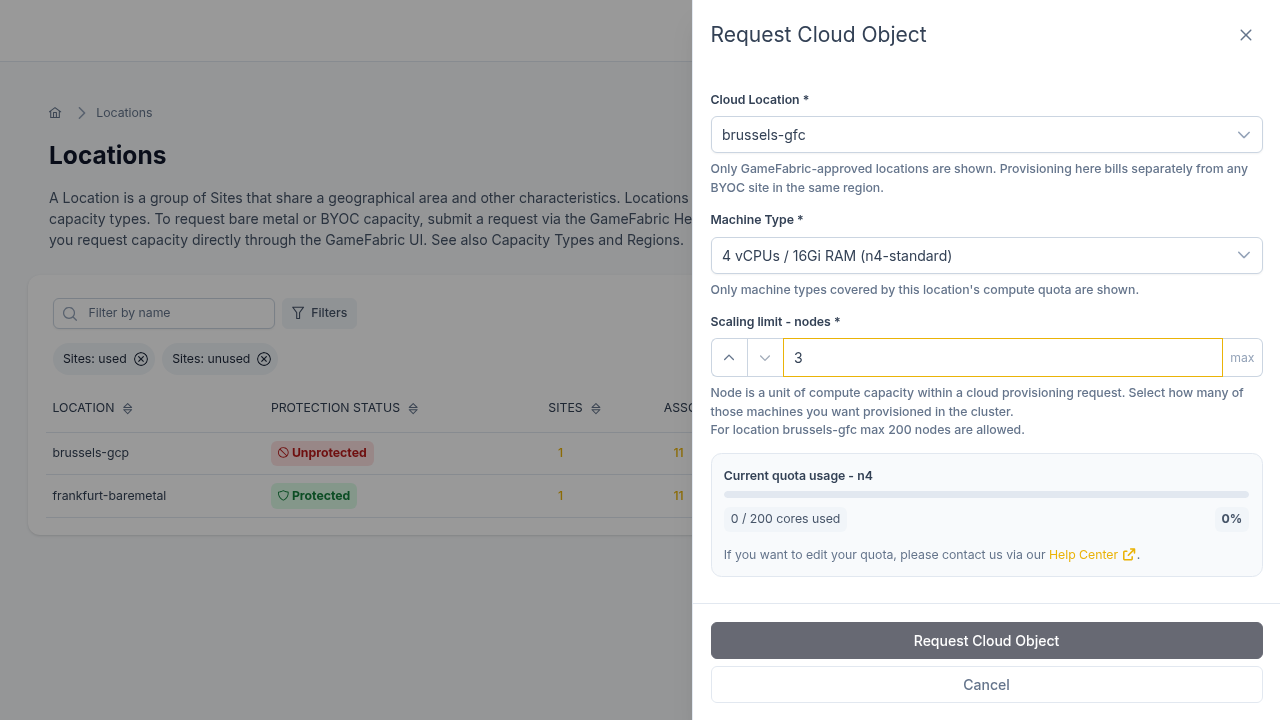
Fill in the form:
- Cloud Location — the GameFabric Cloud Location to provision into.
- Machine Type — the hardware configuration (vCPU and memory) of each node.
- Scaling limit — nodes — the maximum number of nodes to provision.
If a desired Location or Machine Type is not available, or when a Scaling Limit is not sufficient, contact the Help Center to request a quota change. See also Quotas and other limitations.
Review the pricing terms, check the acknowledgement checkbox, and click Request Cloud Location.
The Cloud Location appears in the drawer and moves through the following states:
| State | Meaning |
|---|---|
Pending | The request has been submitted and is queued |
Provisioning | Infrastructure is being created |
Provisioned | Capacity is live and available for game server scheduling |
Deprovisioning | Removal is in progress |
Error | Provisioning failed; the reason is shown on the Cloud Location card |
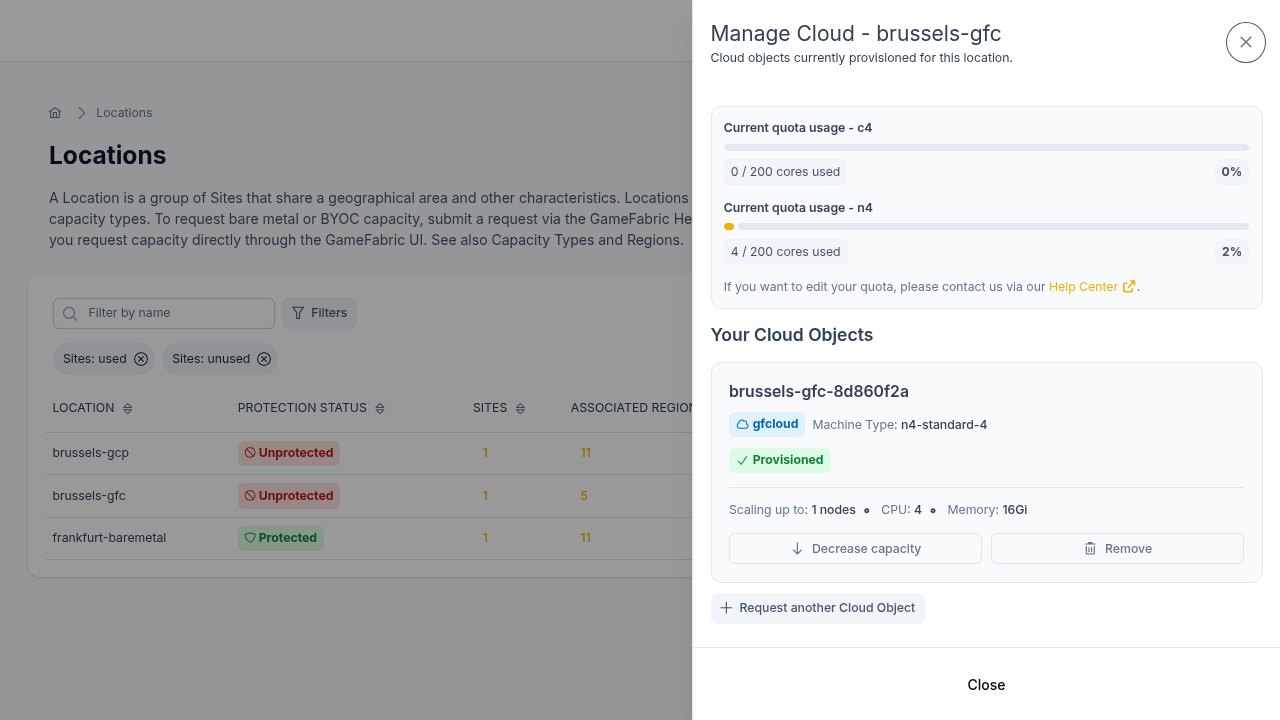
Once Provisioned, Sites appear under the Location. Open Manage Cloud on a Location at any time to see all Cloud Locations as cards with their current state, machine type details, and scaling limit.
TIP
Ensure your Regions include the cloud Location so that newly provisioned capacity is used by your Armadas and Vessels automatically. See Regions, Sites & Locations.
Resize a Cloud Location
You can reduce the node count of a Provisioned Cloud Location without removing it:
- Open Manage Cloud for the Location.
- Click Decrease capacity on the Cloud Location card.
- Enter the new node count. It must be lower than the current count and at least 1.
- Accept the pricing terms checkbox.
- Click Decrease Capacity.
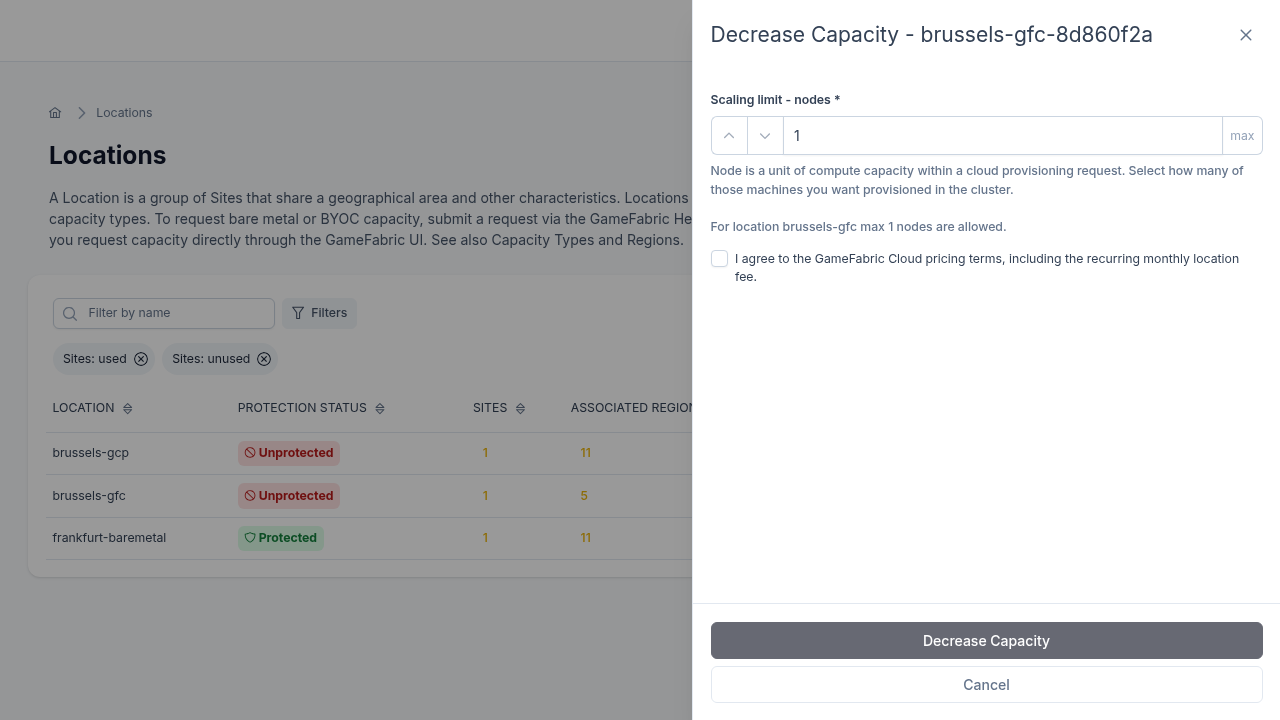
Editing to increase the node count is not supported, as capacity is already bound to an existing cluster and additional capacity may not fit there. To get more capacity of the same machine type at a Location, request an additional Cloud Location at the same Location.
WARNING
Downsizing is blocked while a deprovisioning is scheduled for the Cloud Location.
Deprovision a Cloud Location
To remove a Cloud Location and deprovision the underlying infrastructure:
- Open Manage Cloud for the Location.
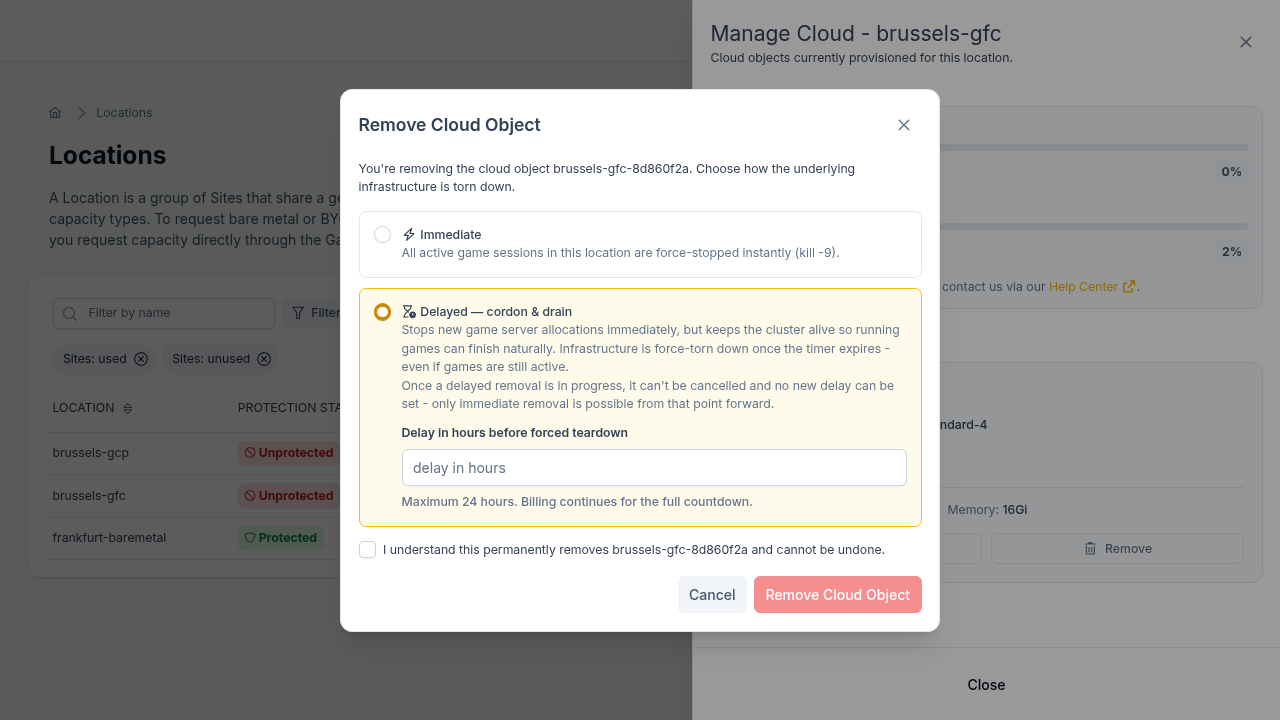
- Click Remove on the Cloud Location card.
- Choose a deprovisioning mode (explained below).
- Accept the consent checkbox confirming the removal is permanent.
- Click Remove Cloud Location.
WARNING
Billing continues for the full duration of the delay countdown. Once a delayed removal is in progress it cannot be cancelled. Only Immediate removal remains available from that point forward.
The Cloud Location transitions to Deprovisioning state. Once complete, it disappears from the drawer and the associated Sites are removed.
Deprovision modes
Immediate — Active game sessions using this Cloud Location's capacity are force-stopped and the infrastructure is torn down right away. Use this when you need to release capacity immediately and no active players are using this Cloud Location.
Delayed (cordon & drain) — New game server allocations stop immediately, but the cluster stays alive so running sessions can finish naturally. Set a delay of up to 24 hours. Once the timer expires, infrastructure is force-torn down even if game servers are still running.
Find managed Cloud Locations
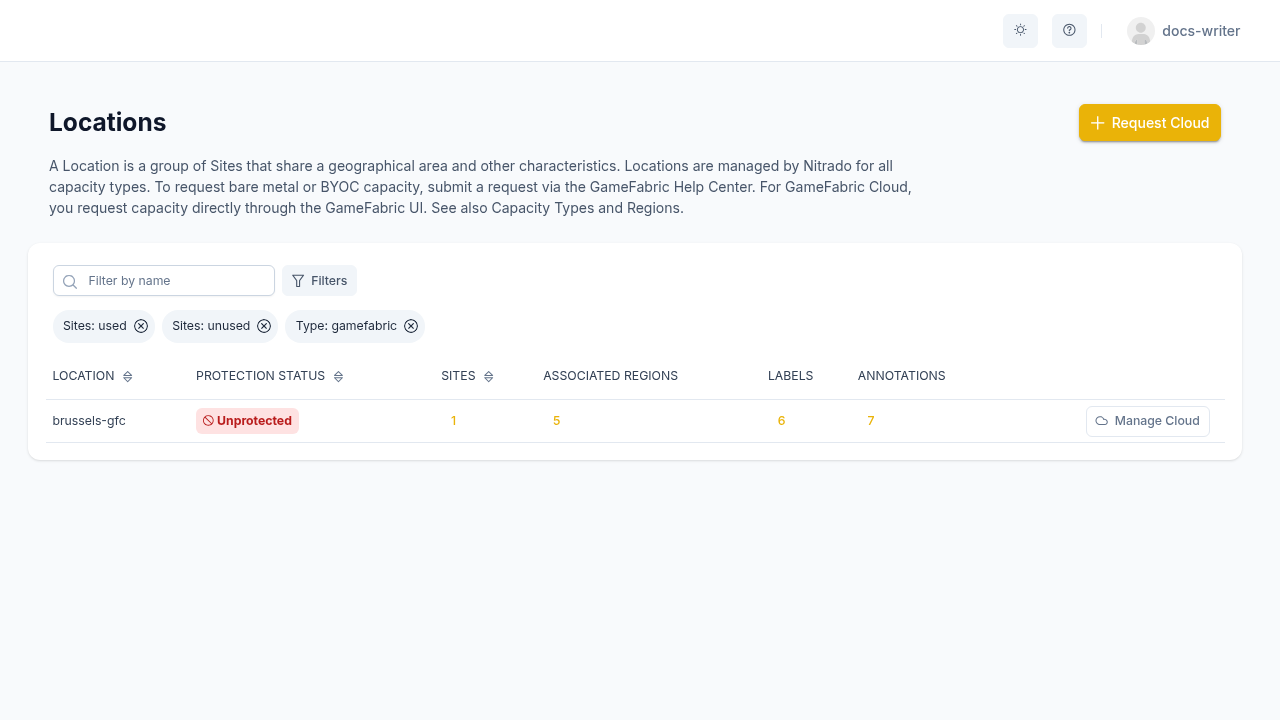
The Locations dashboard opens with default filters that exclude unprovisioned and unassigned Locations.
To find all managed Cloud Locations, clear the default filters, then select gamefabric from the Filter by Types dropdown. To narrow to only Locations with active capacity, also select used from the Filter by Sites dropdown.
Quotas and other limitations
Quotas apply per Location and per machine type family, controlling how much compute can be provisioned at any given time. Cloud Locations come with a predefined set of available machine types, quota limits, and supported regions. If these do not meet your requirements, contact the Help Center to request different quotas, machine types, or in exceptional cases also locations.
GameFabric Cloud only supports Google Cloud Platform (GCP).
Required permissions
To provision a Cloud Location, a user must have post capability on the clouds resource in the provisioning/v1beta2 API group. To resize or deprovision a Cloud Location, patch and put capabilities are required, where as deprovision also requires delete capability.
If the Manage Cloud button is not clickable on a Location row, your Role does not include the necessary capabilities.