

Managing Token Services
This page describes how to create, edit, and delete Token Services through GameFabric.
Accessing Token Services
Navigate to SteelShield™ → Token Services in the left sidebar to open the Token Services list:
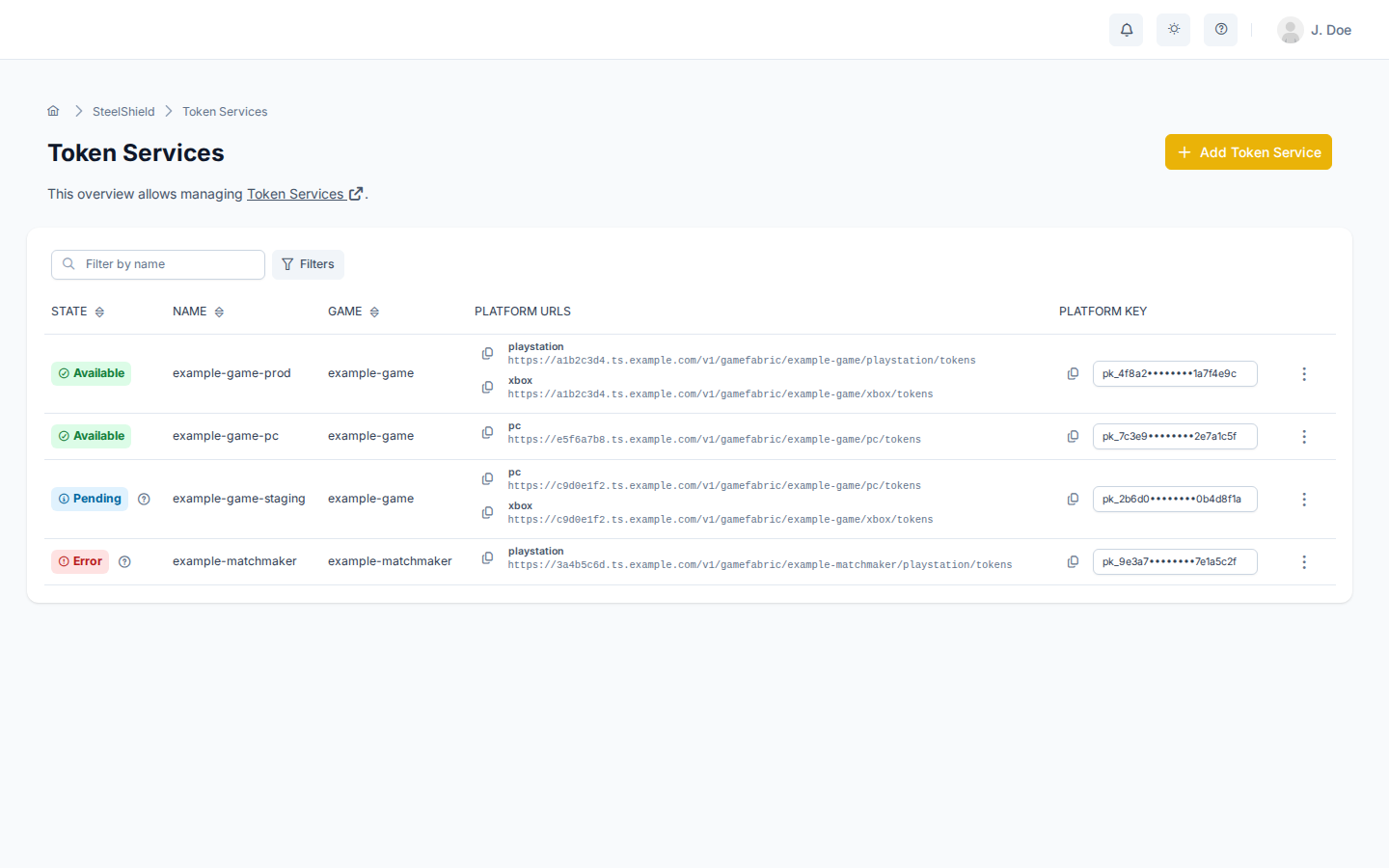
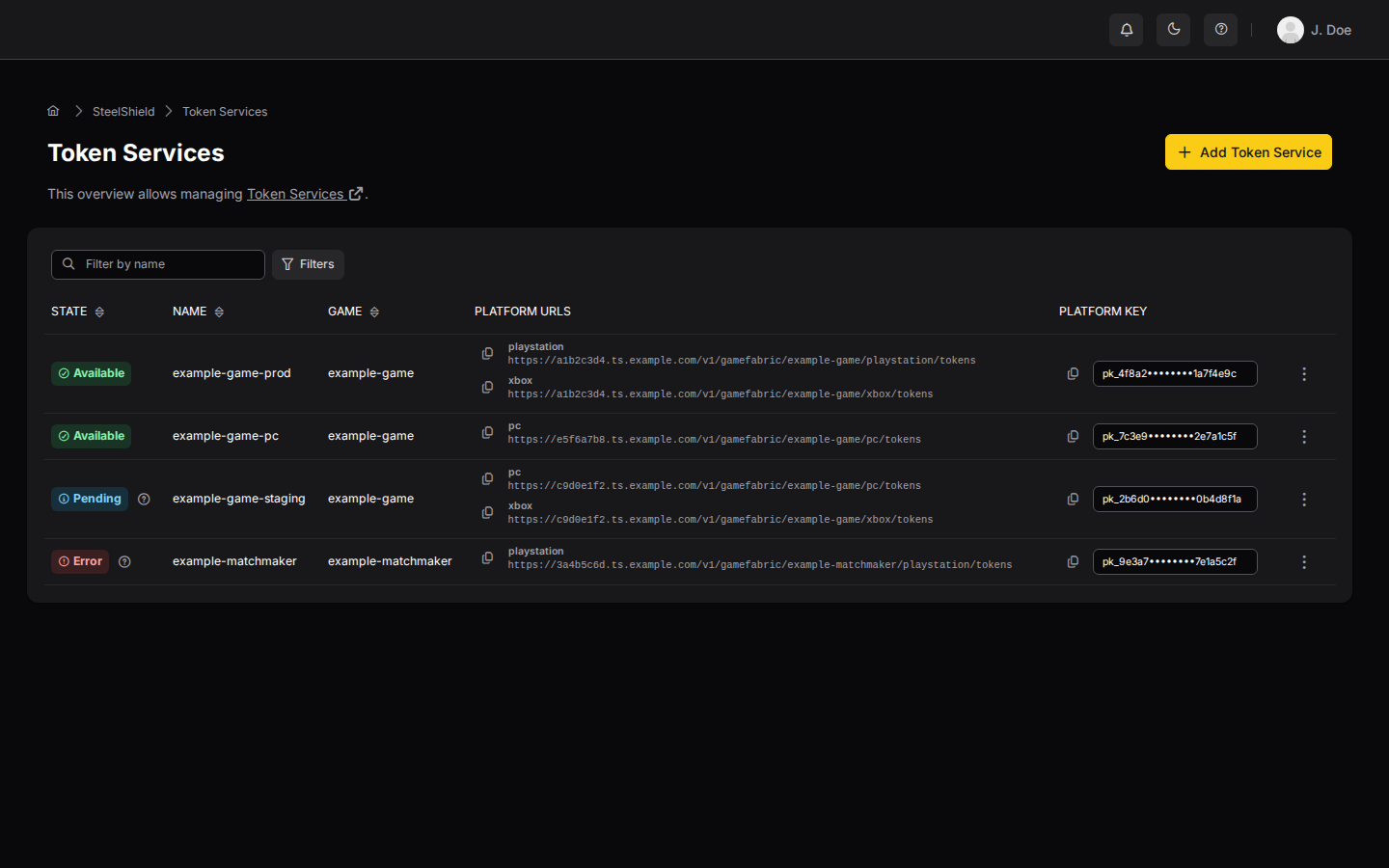
The list shows every Token Service with its current state, endpoint for each enabled platform, and the platform key needed to contact them. If the state has a reason, hover over the question mark icon next to it to read the reason.
Adding a Token Service
To add a new Token Service, click Add Token Service on the Token Services page. The wizard consists of two steps:
- General: name, environment, game name, and platforms.
- Authentication: choose an authentication method and configure it.
General settings
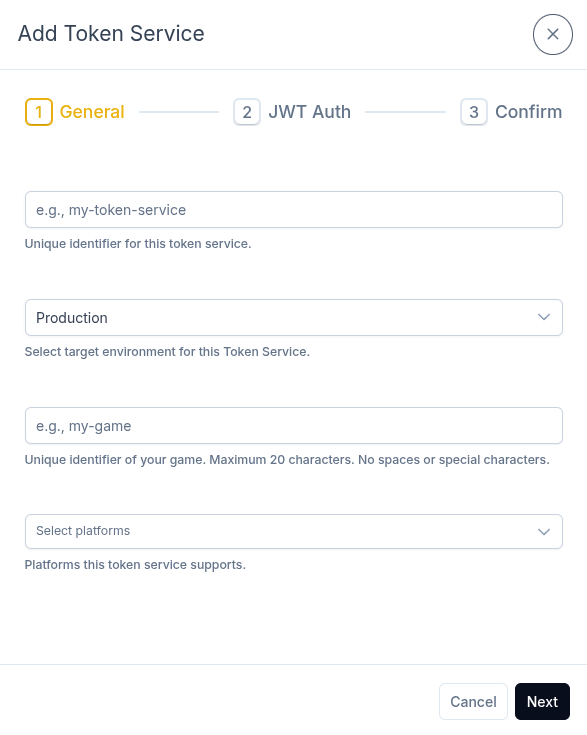
The General tab collects the basic configuration for the Token Service.
Environment
The Environment determines how the Token Service handles errors. For a faulty request, the Development setting makes the Token Service return an error response that is relevant for developers. For Production, the Token Service masks its behavior by always responding with success and a SteelShield token that does not function.
Authentication settings
The JWT Auth tab lets you choose an authentication method and configure it per platform.
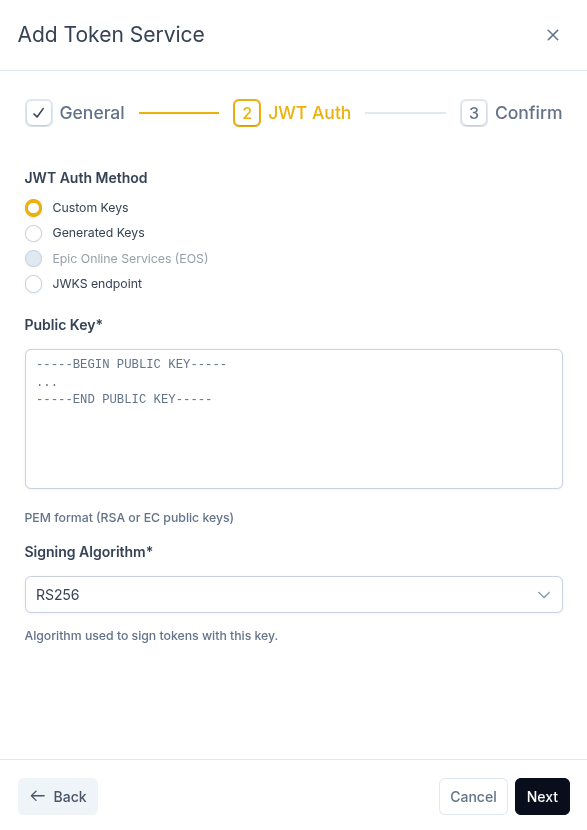
Choose one of the following authentication methods:
- Custom Keys: provide your own PEM public keys.
- Generated Keys: generate a key pair in the browser.
- EOS (Epic Online Services): validate Epic Online Services tokens.
- JWKS (JSON Web Key Set): use a remote JWKS endpoint.
See Authentication Types for full details.
Custom Keys
Upload one or more PEM public keys and specify a signing algorithm for each. Supported algorithms are RS256, RS384, RS512, ES256, ES384, and ES512.
Generated Keys
Instead of providing your own keys, you can generate an RSA key pair locally in the web interface.
WARNING
The private key never reaches GameFabric's backend. It is shown only once and cannot be retrieved later. Save it securely before closing the dialog. Do not include it with the game client. It is meant only for signing by the authentication backend.
EOS (Epic Online Services)
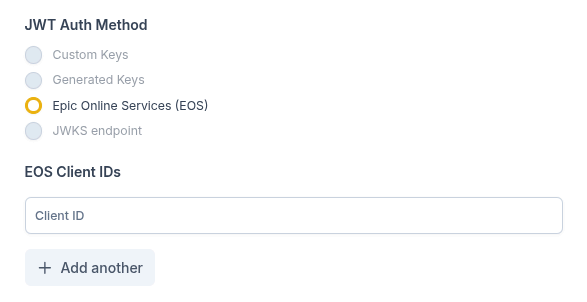
To use EOS authentication, select EOS as the only platform in the Platforms list in the General tab. In the API, skip the platforms list.
Enter one or more Epic Online Services client IDs. The Token Service allows clients to authenticate with any of the client IDs you configure here.
JWKS
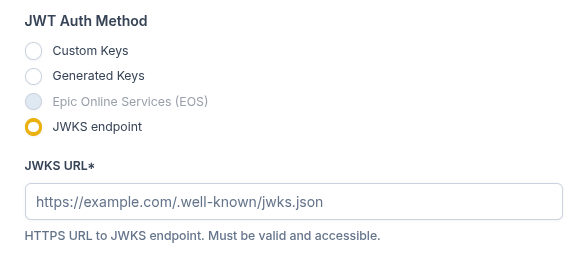
Provide an HTTPS URL to a JSON Web Key Set endpoint. The URL may look similar to https://<hostname>/.well-known/jwks.json, but it does not have to follow this format.
The Token Service regularly fetches the public keys from this endpoint to verify tokens.
Confirm
Review the configuration and confirm to create the Token Service. After creation, the Token Service enters the Pending state while being provisioned. GameFabric then assigns it a hostname and platform keys, which appear in the Token Services list. When provisioning completes, the status switches to Available.
Editing a Token Service
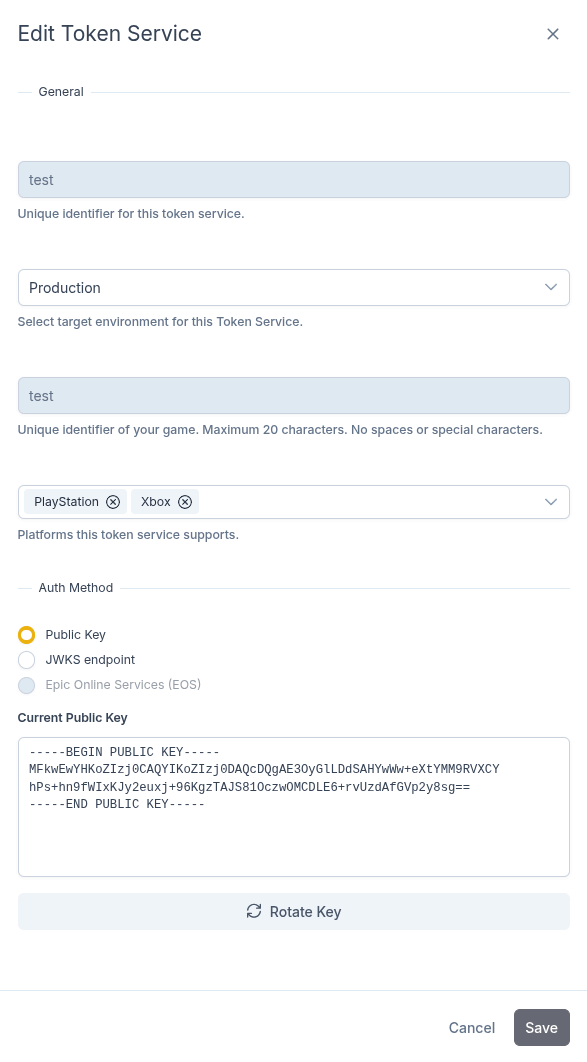
To edit an existing Token Service, click the ellipsis button (⋮) on the row and select Edit. A wizard opens pre-filled with the current configuration. Make your changes and confirm to update the Token Service.
Rotating the key
For Token Services that use Custom Keys or Generated Keys, you can rotate the keys without changing the service configuration. This is useful when you need to replace the signing key (for example, after a key compromise or when rotating keys on a schedule).
To rotate the key:
- In the edit wizard, scroll to the Auth Method section and select Public Key.
- Click Rotate Key below the current public key display.
- Choose one of two options:
- New custom key: upload a new PEM public key file or paste the PEM content, then select a signing algorithm.
- Generate new pair: click Generate New Key Pair to create a new RSA key pair in the browser. The private key is shown only once and cannot be retrieved later.
- Click Done to exit the key input, then click Save to apply the new key.
WARNING
Generating a new key pair invalidates the current public key immediately. Tokens signed with the old private key are rejected until you update the authentication backend to use the new private signing key.
WARNING
The private key generated during key rotation is shown only once. Save it securely before closing the dialog.
The new key takes effect immediately on save. The Token Service does not enter a pending state during key rotation.
Rotating the key without downtime
Replacing an existing signing key immediately invalidates the previous key. This can leave a period where your customers cannot authenticate and receive a SteelShield token until your backend and Token Service share the same key again.
Rotating the key in place therefore requires downtime while you update the private signing key on your backend or the public signing key on the Token Service.
To avoid downtime, create a new Token Service with the new public key, then transition your game client to the new Token Service. Because the URL and platform key change, you must also issue a game client update with the new details.
Deleting a Token Service
To delete an existing Token Service, click the ellipsis button (⋮) on the row and select Delete. The interface asks for confirmation once before deleting the Token Service.
Status
Each Token Service has a status that reflects its current state:
- Pending: the Token Service is being provisioned or updated.
- Available: the Token Service is ready to accept requests.
- Error: the Token Service encountered an error. GameFabric displays an error reason alongside the status.
When a Token Service is available, its status includes a hostname and platform keys for authenticating requests.